
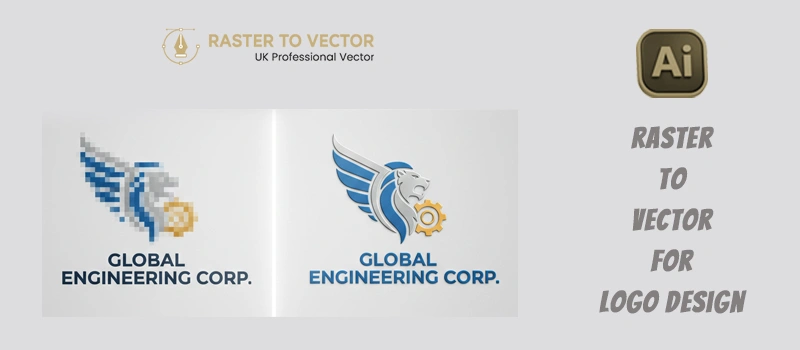
Trying to enlarge a logo and watch it turn pixelated? You are working with a raster image. To get a perfect logo for all screen sizes, you have to convert it into a vector. Then, it will be ready for printing, signage, and all digital platforms. The quality will be ultra-high.
That’s why a vector file is essential for any professional logo. Vectors are built with paths and curves. They stay sharp at any size. Using Adobe Illustrator, you can convert raster to vector for logo ensign. It’s going to be very beneficial for UK business people.
What is a Raster Logo?
A raster logo is made by using lots of pixels. Every JPG, PNG, and JPEG file you see online is a raster image. When you try to resize the raster logo for different screens, the pixels get visible. It also looks blurry after printing. Raster logos are limited to a specific resolution.
What is a Vector Logo?
A vector logo is created using paths instead of pixels. These paths define shapes, curves, and lines. As the vector logo is made with perfect precision, it can be scaled infinitely without losing quality. You can even make it huge for a stadium banner. It will stay sharp every single time. Common vector formats are AI, SVG, and EPS.
How to Convert Raster to Vector for Logo Design in Illustrator?
Step 1: Open Your Raster Logo
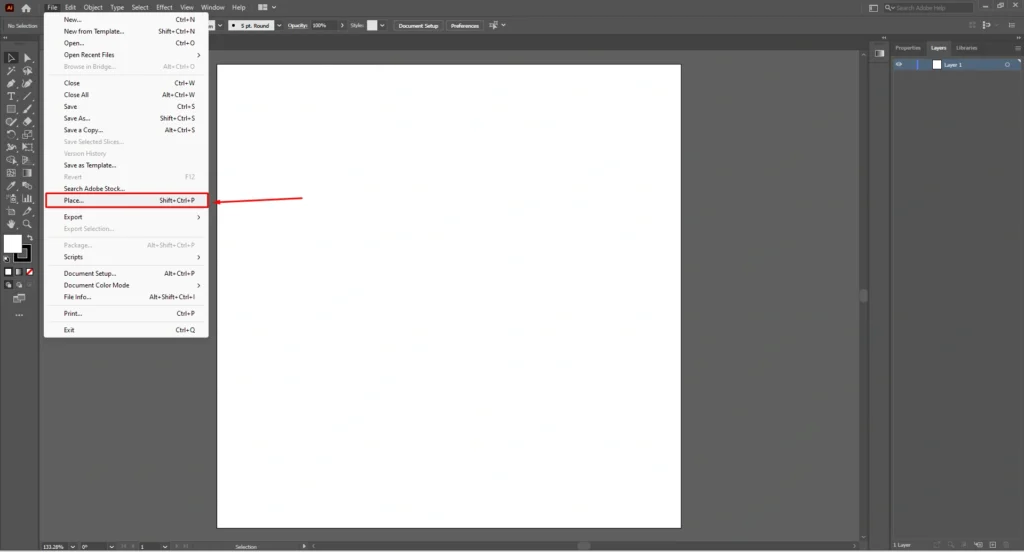
We are going to start with our raster logo image in Adobe Illustrator. Open Adobe Illustrator and choose the place option from the file.
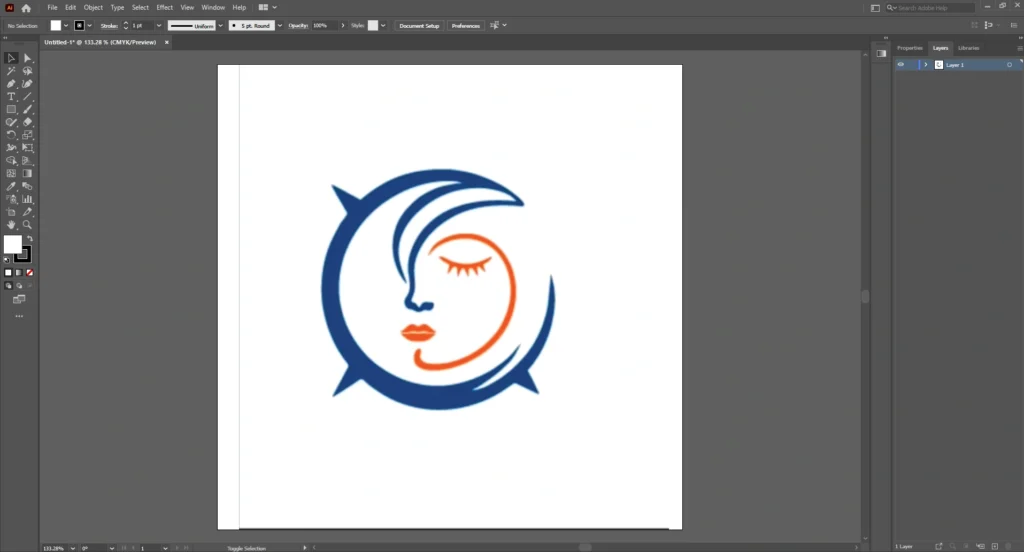
Select the image and place it on your artboard. Here’s the logo that we are going to use.
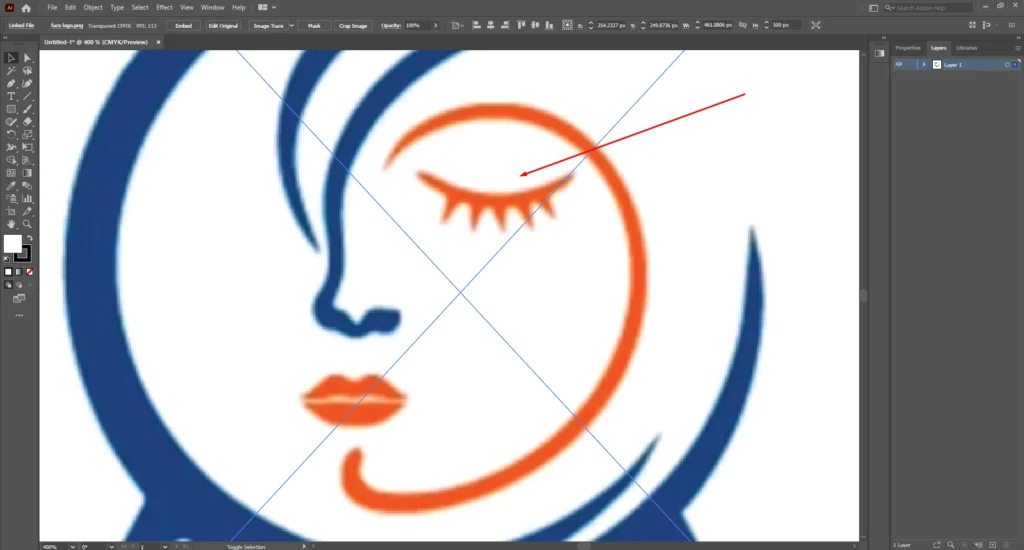
As you can see, after zooming in on the Raster image, the quality gets horrible.
Step 2: Select the Image
We have to press ALT and drag the logo image to duplicate it. We can use the copied file as a reference.
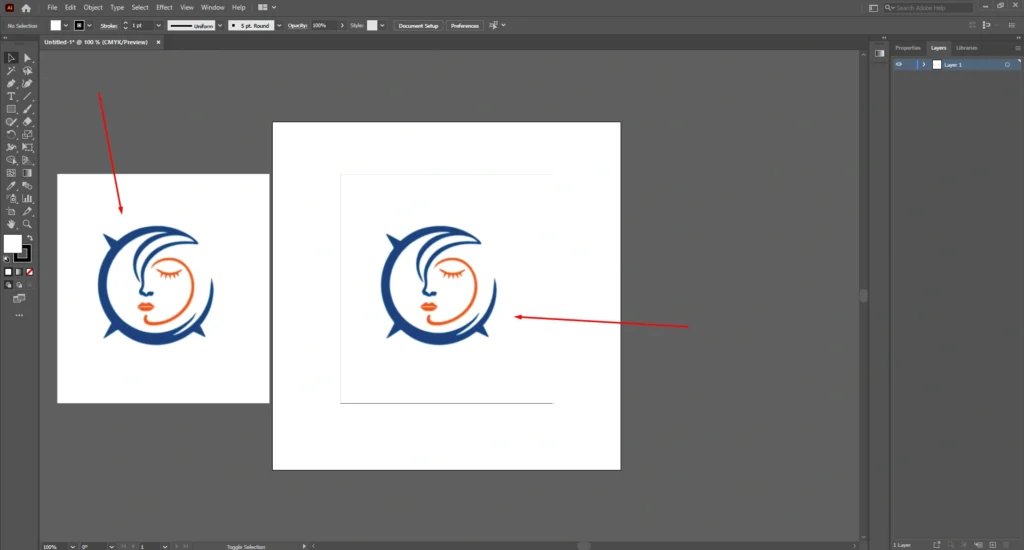
Click on the logo, and you’ll see the Image trace button in the top control panel. After that, you have to click on that option. It will make the logo black and white.
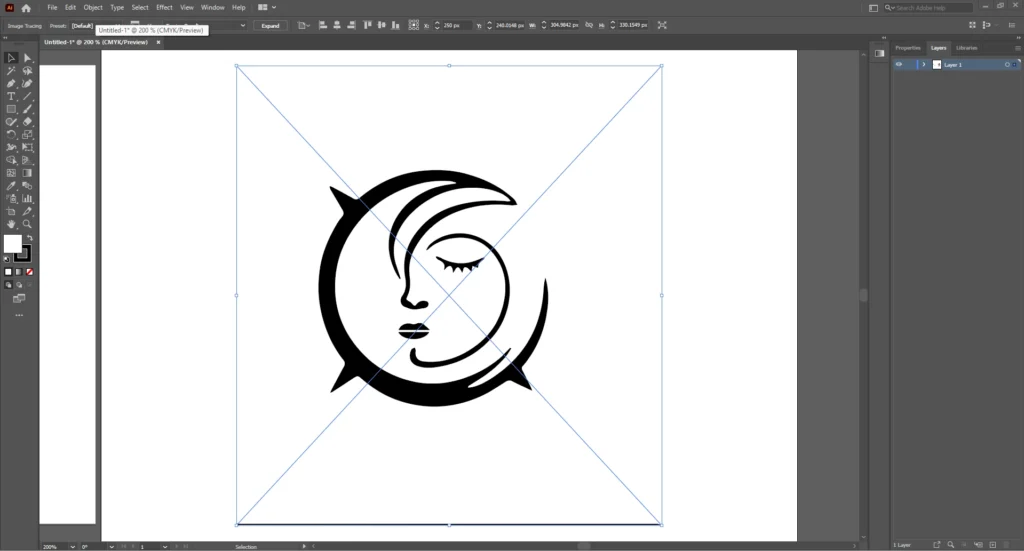
Now, we are going to convert it into a vector logo.
Step 3: Choose the “3 Colors” Preset
From the image trace options, you should select “3 Colors”. Illustrator will automatically convert the image into three flat color shapes.
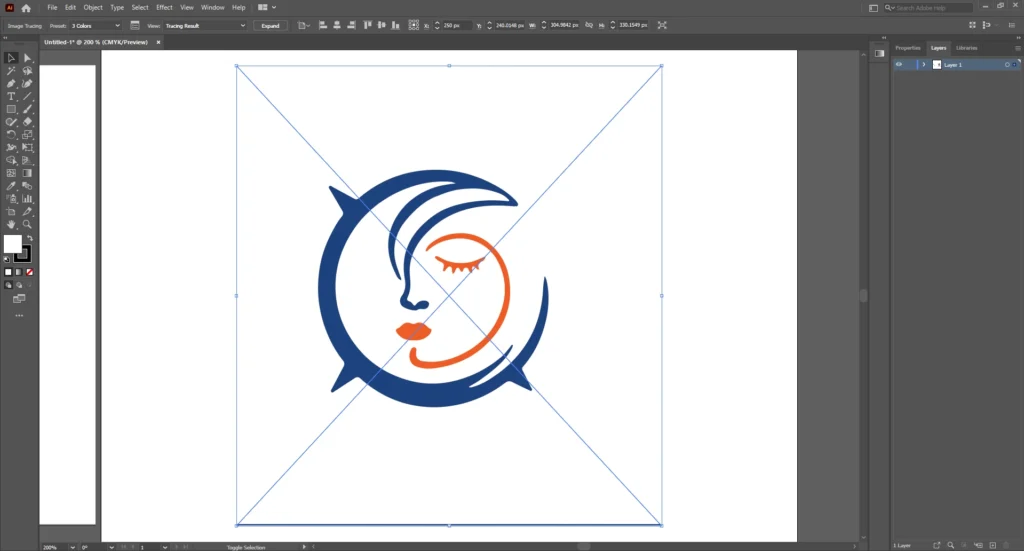
At this stage, it looks decent. The image is sharp, no matter how much we zoom in.
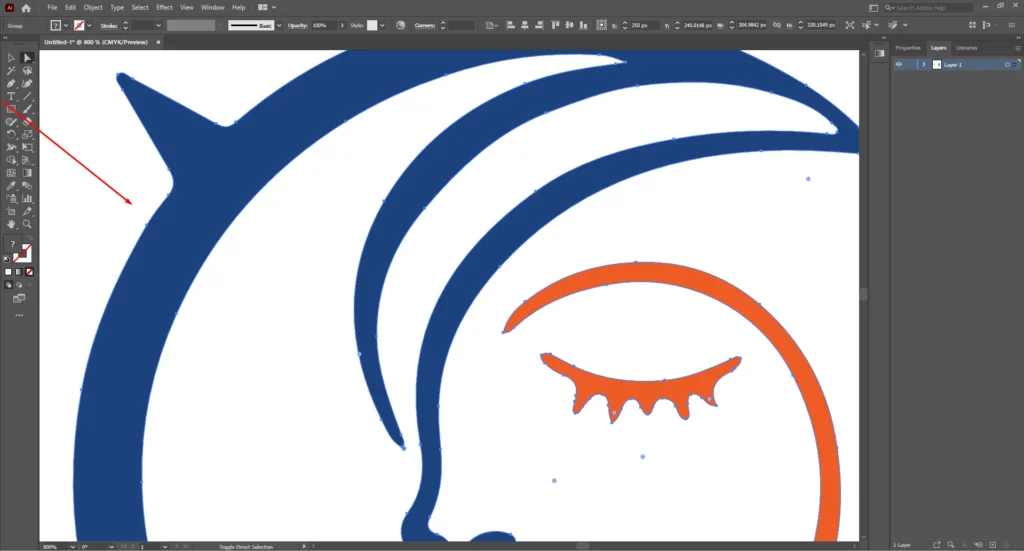
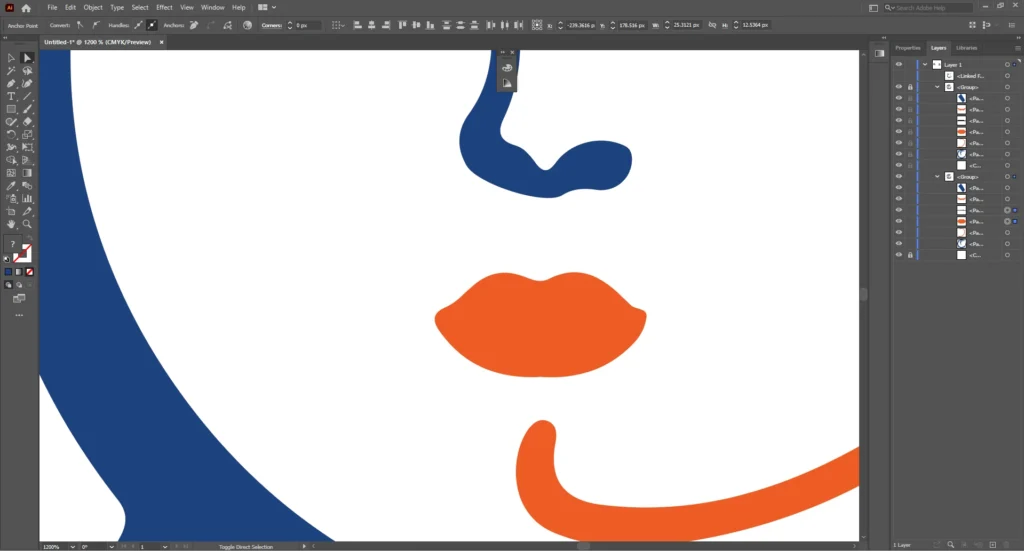
But we need to refine the shape. The leap is looking flat but there were gaps between the lips in the sample.
Step 4: Adjust the Trace Settings
Click on the expand option from the top to increase the detail. Select the area that we need to adjust and use the curvature pen tool to draw the shape like the sample image.
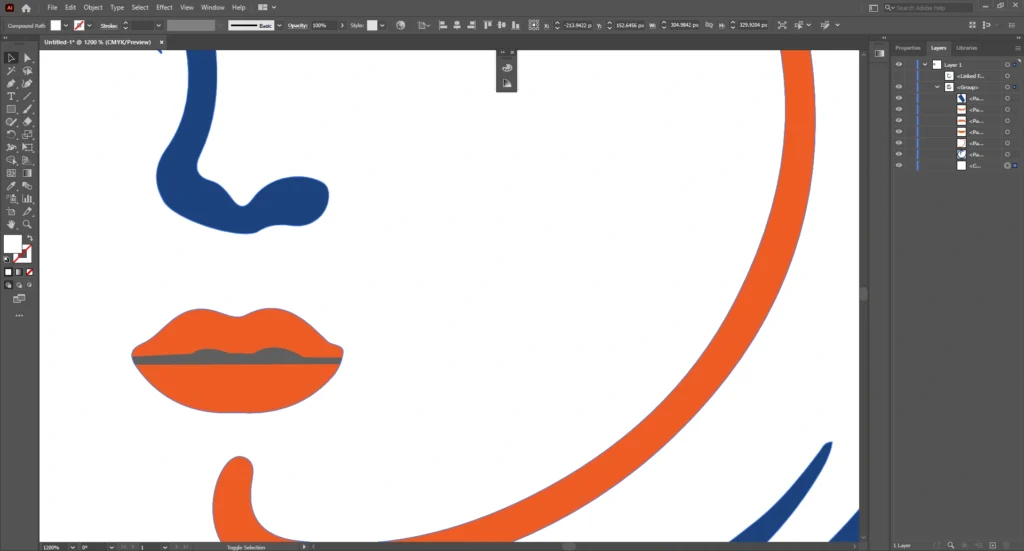
After that, use the shape builder tool to adjust the shape. Take your time here. Small adjustments can improve the result.
Step 5: Enable Transparency
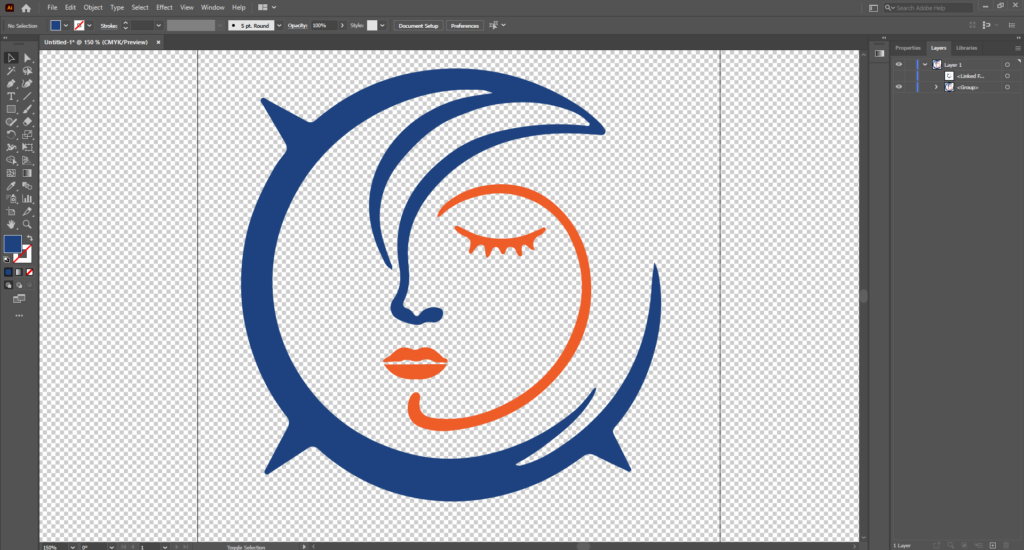
Now, your traced image becomes editable vector paths. Go to the view option from the top and choose “show transparency grid”.
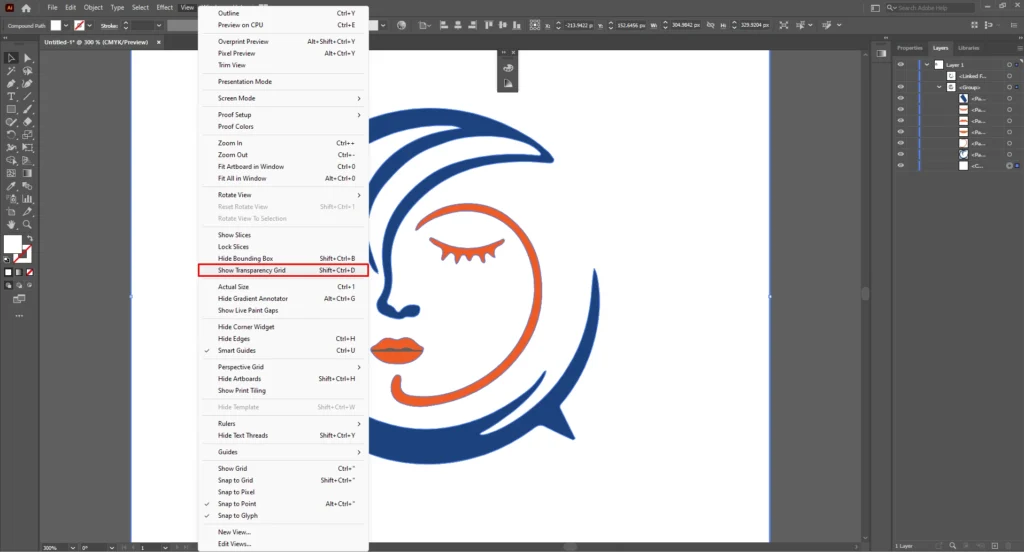
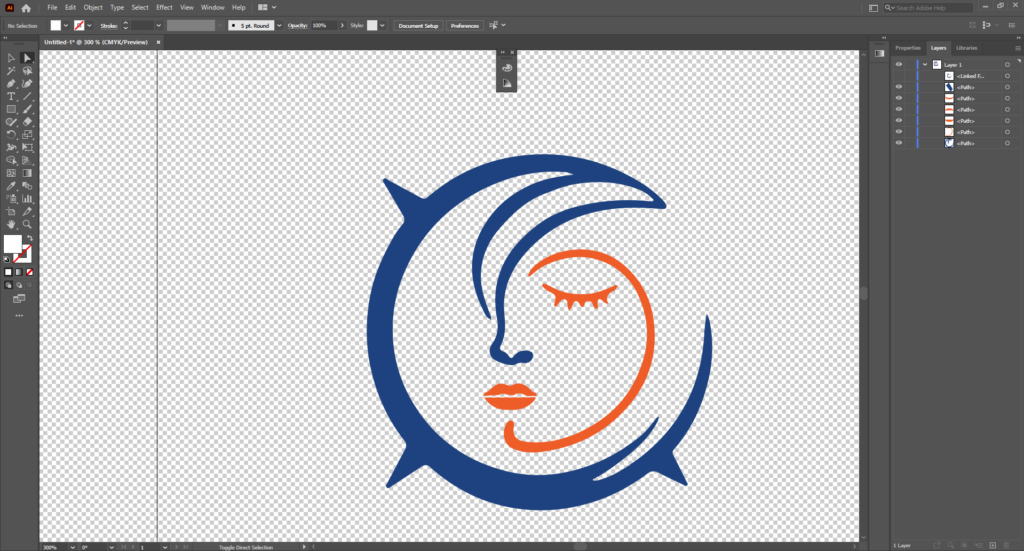
Now, we are going to delete unwanted shapes. Select the shape you want to delete with the selection tool and press Delete. A transparent background is needed for a logo.
Step 6: Save as a Vector File
Now, our logo is ready. Save it as a vector file for your use. Go to the file option from the top and save as the needed format. Your raster logo is now a scalable vector.
Raster Logo Vs Vector Logo Comparison
Here’s a quick overview of the raster and vector logo image.
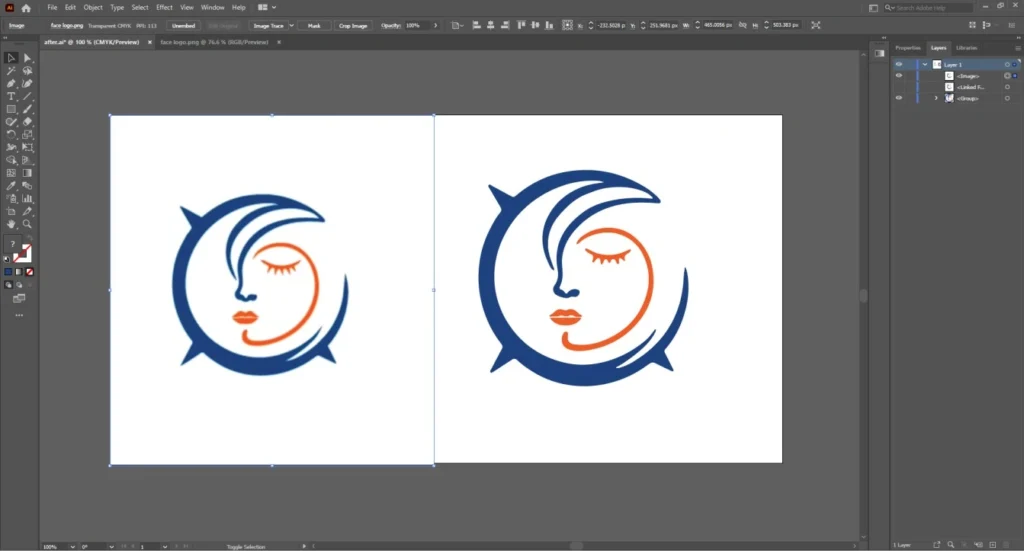
The Vector file is sharp and precise. We can use the vector file for any professional use.
5 Common Errors That Damage Vector Tracing Quality
- Not adjusting the Path after image tracing
- Skipping manual cleanup
- Leaving unnecessary anchor points
- Save the file without expanding
- Applying the same tracing preset for all images
What To Do When Image Tracing Isn’t Enough?
Image trace features provide good results for simple images. When your original image has a very poor resolution, the vector result is not accurate. Also, tracing features are not suitable for complex and super complex images.
In those cases, you have to trace the image manually. Otherwise, no shortcut method can provide accurate results.
You can outsource your vector conversion requirements to us for manual tracing. Our manual vector tracing experts can work on any complex and super complex images. The best part is you don’t have to spend your time and effort on that. Just send us your images and wait for the final premium vector file.
Sum Up
Converting a raster to vector for logo design is helpful to make the logo usable for all platforms. The image tracing option makes it easy for everyone. In this method, you can convert any logo without using AI. Just make sure that you adjust the tracing result before saving.
Do you need to upgrade your old logo? Our vector artist can help you with that. You just need to upload your old JPG image and get it into a perfect vector shape. We assure to preserve quality. We do manual tracing. That’s why we can maintain the best quality to convert vector for logo design.
FAQ’s
Can I convert any JPG logo into a vector?
Yes, you can. But the quality depends on the original image. A high-resolution JPG will produce better vector results than a blurry file.
Does Image Trace create a perfect vector automatically?
No, image trace is a starting point. You need manual adjustment to refine curves, remove extra anchor points, and correct the shapes.
What file format should I save my vector logo in?
AI, SVG, and EPS are the most common professional formats. SVG is ideal for websites. AI and EPS are good for printing and editing.
Why does my traced logo look rough?
This happens because of the wrong tracing method. You have to change the tracing method. Also, fix the incorrect path, corner, and noise settings in Illustrator.
Is the 3 Color option good for all logos?
No, it’s not. It works best for simple logos with limited colors. Complex designs with gradients require more advanced tracing.
Can I edit colors after vectorizing?
Every shape becomes editable after expanding the tracing result. You can easily change colors, resize elements, and adjust the design.